

Purpose: This document defines the internal operational logic of the Project Management
📋 Function. It governs the entire project execution process, from initial setup after a contract is signed to final handover and warranty.Why This Matters
This📋 Function provides a unified, transparent, and structured environment for managing complex interior design and construction projects. It replaces scattered information across different tools with a single source of truth for project timelines, budgets, tasks, and communications. Strategically, this enables real-time project health monitoring, precise budget control, and improved client satisfaction through predictable delivery. For project managers and teams, it clarifies responsibilities, automates progress tracking, and ensures a consistent workflow for every project.
The Big Picture
Architecturally, this📋 Function is the operational core of the business, activated once a deal is closed in the CRM 📋 Function. It is built on a sophisticated data model involving five interconnected 🧊 Objects. The structure is hierarchical, with the 🧊 Project as the central container. 🧊 Construction Categories and 🧊︎︎ Tasks form a work breakdown structure, while 🧊 Materials and 🧊 Construction Logs are linked in to manage procurement and daily progress respectively. This interconnected system provides a comprehensive, 360-degree view of all project activities.
OBJECT TYPES & WORKFLOWS
1. 🧊 Project (Standard Object)
- Process Description: The main container for all project-related activities, information, and financials, from the design phase through to the warranty period.
- Example: The project for the main client is named “Project - Sarah & Michael Westbrook”. Another example from the list is “Project - Boutique Hotel Riviera”.
- Workflow
- Status Details
- Data Fields
Project Workflow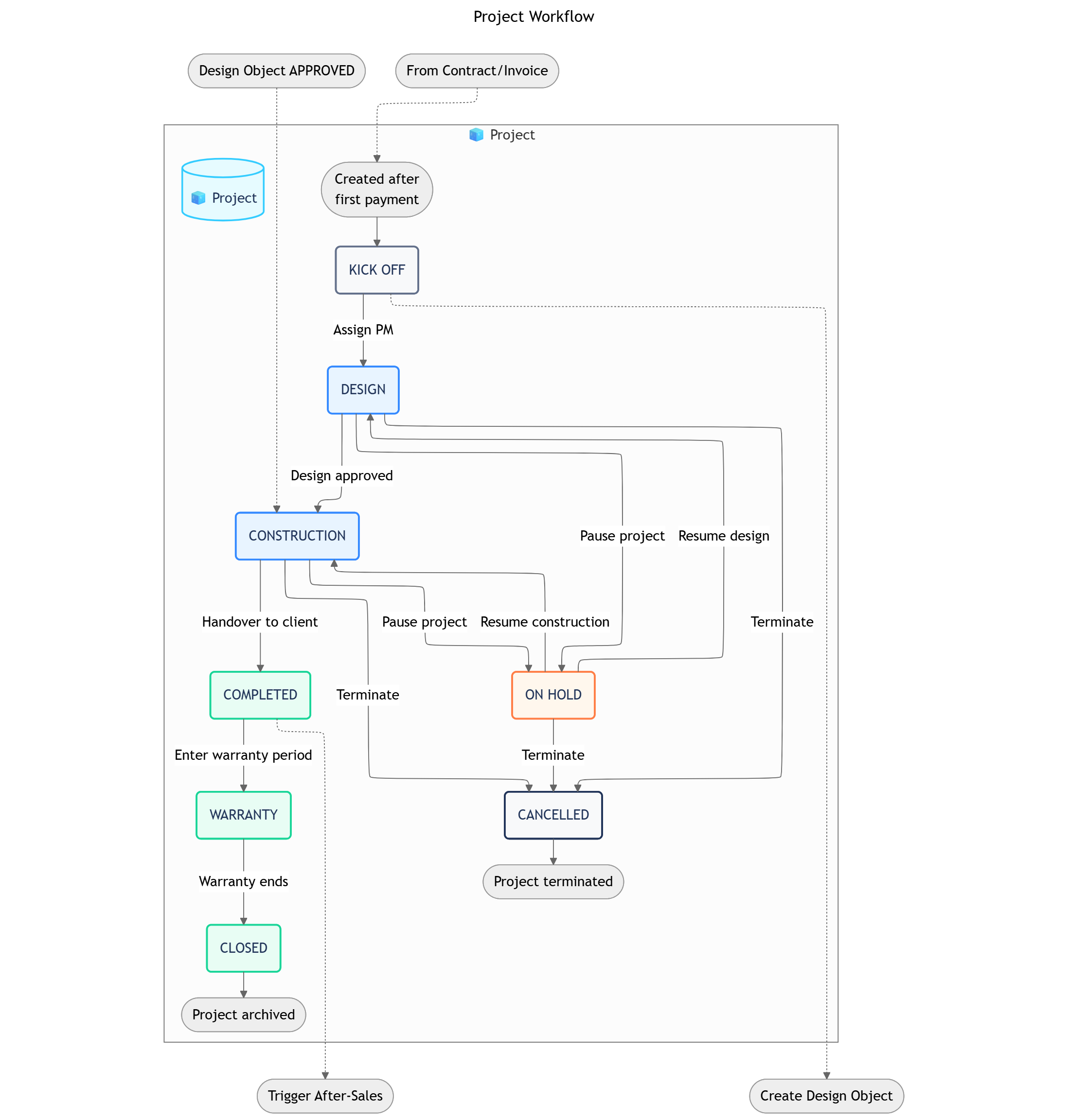
Pro Tip: Expanding Your Project BlueprintThe current Project Management blueprint is streamlined for clarity. As your operational complexity grows, you can easily expand it by adding more specialized
🧊 Objects to manage finer details. For example, you could add:🧊︎ Construction Categoryand🧊︎︎ Tasksub-objects to create a detailed work breakdown structure (WBS) for each project.🧊 Materialobjects to track the procurement lifecycle for all necessary equipment and supplies.🧊 Construction Logobjects for daily on-site progress and issue tracking.
2. 🧊︎ Construction Category (Sub-Object)
- Process Description: Manages a major work package within a
🧊 Project, such as electrical, plumbing, or furniture installation. It groups related tasks together. - Parent Object:
🧊 Project - Example: “Electrical Work” for Project P-101. “Furniture & Decor” for Project P-101.
- Workflow
- Status Details
- Data Fields
PLANNING → IN PROGRESS → ACCEPTANCE → COMPLETED3. 🧊︎︎ Task (Sub-Object)
- Process Description: Represents an individual, actionable work item that needs to be completed. It is the smallest unit of work tracking.
- Parent Object:
🧊︎ Construction Category - Example: “Install living room ceiling lights”. “Assemble kitchen cabinets”.
- Workflow
- Status Details
- Data Fields
TO DO → DOING → DONE4. 🧊 Material (Standard Object)
- Process Description: Manages the procurement lifecycle of a specific material or piece of equipment required for a project.
- Example: “Request for 20L of White Interior Paint”. “Order for Nordic-style Sofa”.
- Workflow
- Status Details
- Data Fields
REQUESTED → APPROVED → PURCHASED → DELIVERED → USED / CANCELLED5. 🧊 Construction Log (Standard Object)
- Process Description: A daily log entry to record progress, issues, and activities on the construction site.
- Example: “Log for 2025-08-20: Completed wall painting for master bedroom. Heavy rain caused minor delay.”
- Workflow
- Status Details
- Data Fields
DRAFT → SUBMITTEDOBJECT RELATIONSHIPS
AUTOMATIONS
- Within-Function
- Cross-Function
- Cross-System Automations
These rules run entirely within the
Project Management Space to provide project visibility and automate calculations.WORKVIEWS & DASHBOARDS
- Workviews
- Dashboards
- Filters
ROLES, PERMISSIONS & NOTIFICATIONS
- Roles
- Permissions
- Notifications
What’s Next?
- Contract & Invoice Function: Understand how the initial
Contract Valueis determined and how client invoicing is managed alongside project progress. - CRM (Business) Function: See the preceding stage where the client relationship and initial project scope are defined before being handed over to this function.