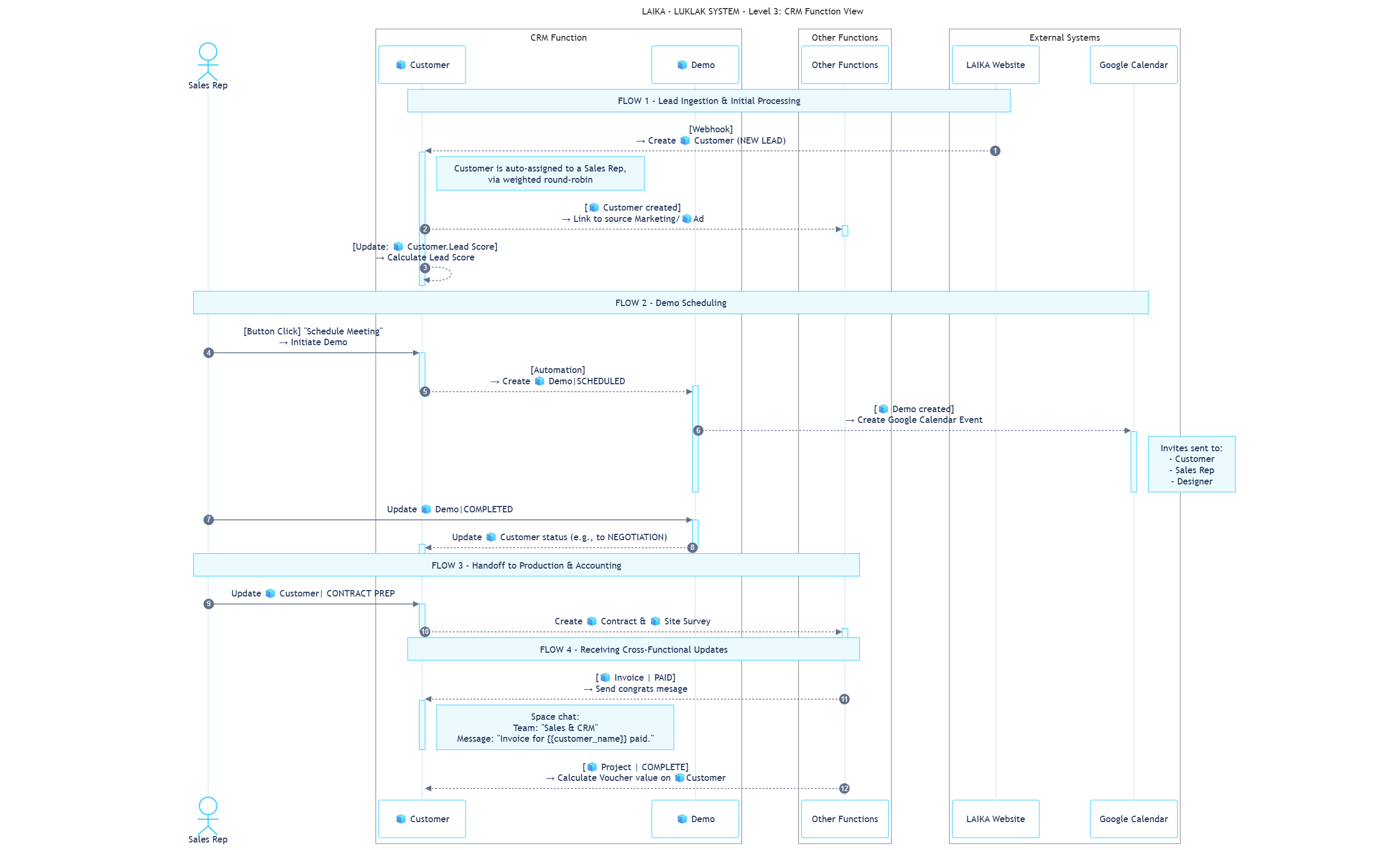
Purpose: This document defines the internal operational logic of the CRM (Business) 📋 Function. It details the process from lead acquisition to deal closure and handover.
This 📋 Function transforms the lead management process from a manual, disconnected effort into a streamlined, automated revenue engine. From a strategic standpoint, it provides clear ROI tracking from ad spend to signed contracts. For the sales team, it eliminates guesswork by automating lead assignment, standardizing follow-up procedures, and integrating essential tools like Google Calendar, directly increasing conversion rates and team efficiency.
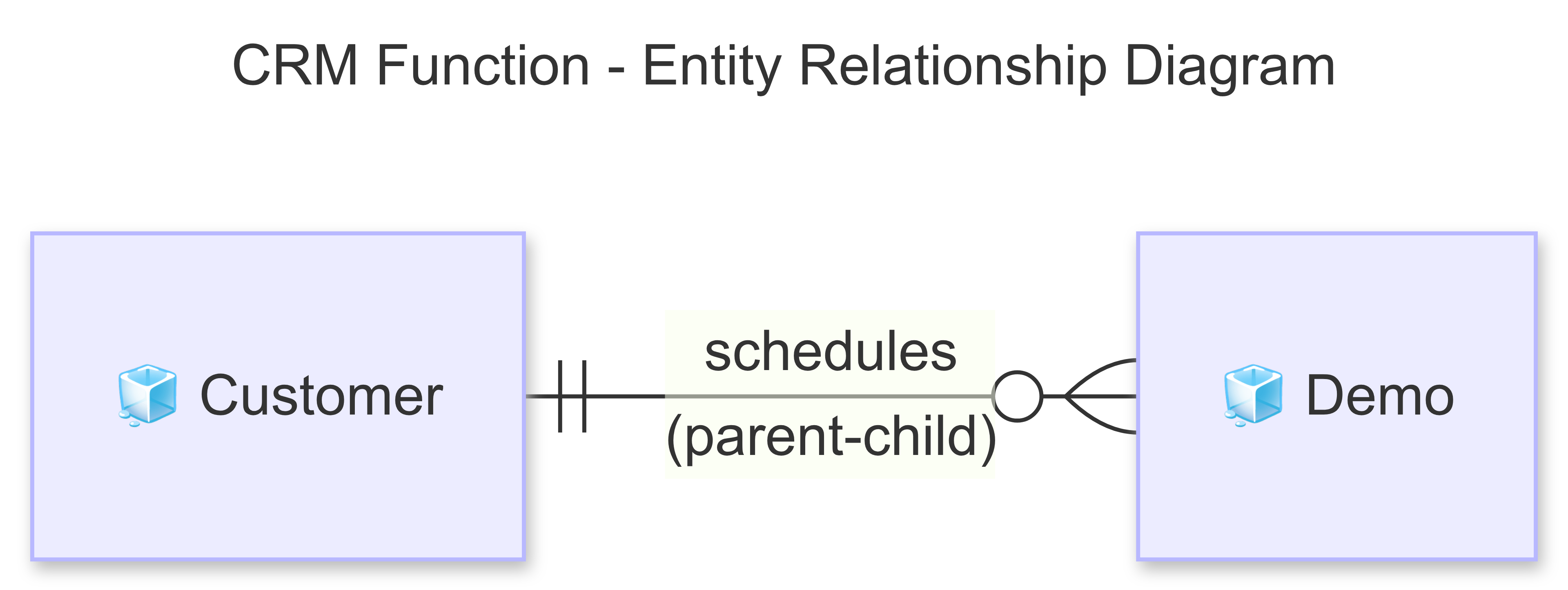
Architecturally, this system is designed to capture leads from external webhooks (e.g., landing pages), process them through a structured pipeline using two core 🧊 Objects (🧊 Customer and 🧊︎ Demo), and then seamlessly hand off successful deals to downstream 📋 Functions like Contracts and Site Surveys. It relies on both internal automations for efficiency and external API calls for calendar integration.
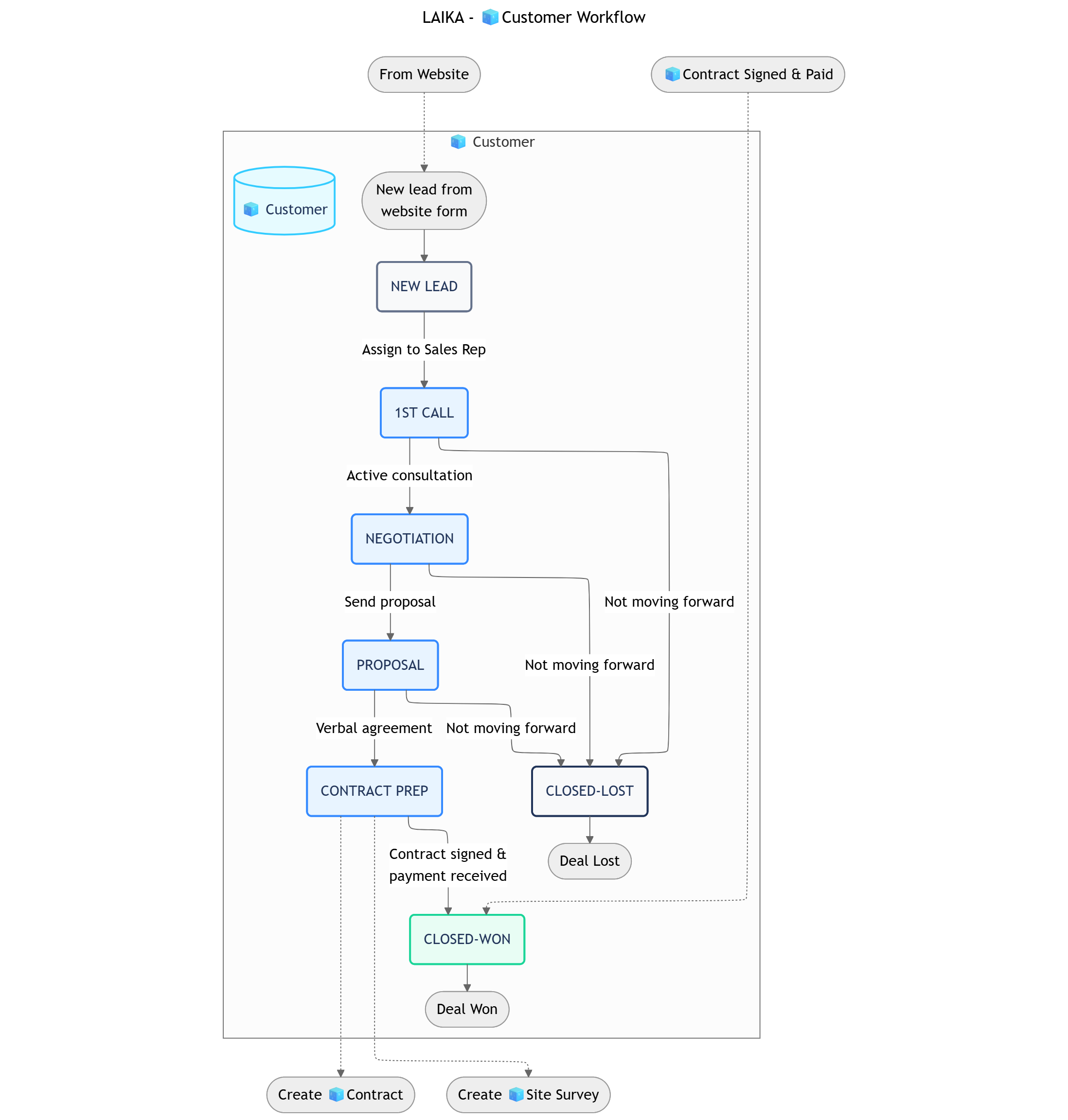
Process Description: Manages potential customers from the moment they are captured via a landing page webhook until they are converted into a signed contract. This includes automated assignment and progress tracking through various statuses.
Example: A potential customer, “Sarah & Michael Westbrook,” is captured from the “Scandinavian Simplicity” ad campaign, which has the ad key MKT-236. Their prospective budget is recorded as $40,000 - $55,000
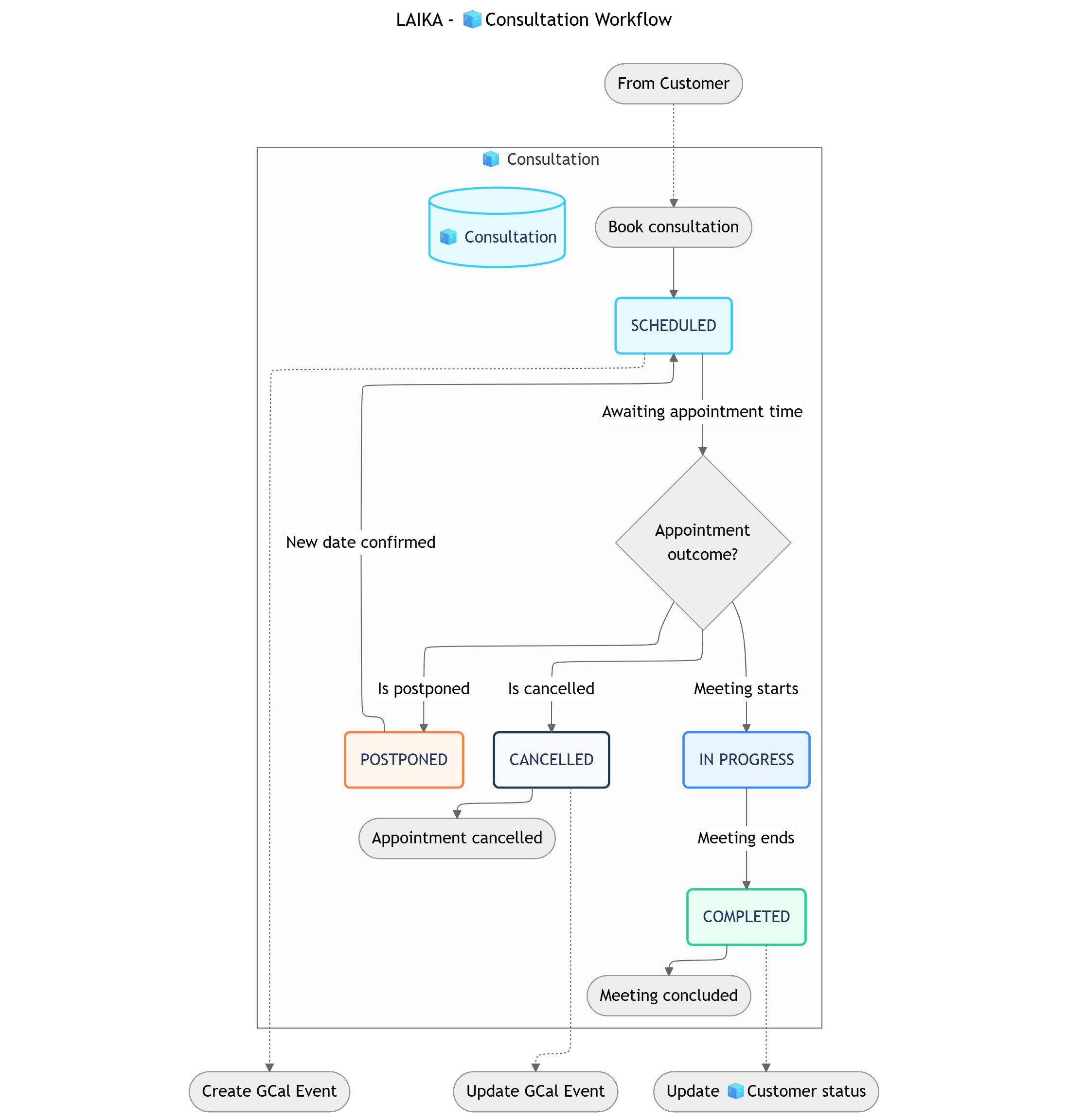
Process Description: Manages direct consultation appointments with customers, fully integrated with Google Calendar to synchronize schedules and send invitations to all participants.
Example: A demo titled “LAIKA x Sarah & Michael - Interior Renovation Demo” is scheduled for June 18th at 2:00 PM, with designer Max and sales rep David attending.
Workflow Diagram
Status Details
Data Fields
Demo Workflow
Copy
┌──────────> POSTPONED ────────┐│ ↓SCHEDULED → IN PROGRESS → COMPLETED│└──────────> CANCELLED
Status
Business Logic
Advanced Settings
1. SCHEDULED
A consultation has been booked for a specific time.
Automation: Creates a Google Calendar event and invites the customer, sales rep, and designer. Data Input: Time, location, participants.
2. IN PROGRESS
The live consultation meeting is currently happening.
Transition Permissions: Assigned Sales Rep, Designer. Data Input: Live notes are taken during the consultation.
3. COMPLETED
The meeting has concluded with a clear outcome.
Transition Permissions: Assigned Sales Rep. Automation: Can update the parent 🧊 Customer status accordingly (e.g., to NEGOTIATION or CONTRACT PREP).
4. CANCELLED
The appointment was cancelled by either the customer or the team.
Transition Permissions: Assigned Sales Rep. Automation: Updates the Google Calendar event and notifies all participants.
5. POSTPONED
The appointment has been deferred to a later, unconfirmed date.
Transition Permissions: Assigned Sales Rep. Condition: Should loop back to SCHEDULED once a new date is confirmed.
Data Field Groups
Group
Field Name (Type)
Notes
Appointment Information(6 Fields)
Demo Title (Text), Time (DateTime), Location (Text), Attending Designer (User), Google Calendar Event ID (Text), Consultation Type (Dropdown)
Basic details about the meeting.
Results & Follow-up(4 Fields)
Interest Level (Dropdown), Consultation Notes (Paragraph), Next Steps (Text), Actual Duration (Decimal)
These rules run entirely within the Sales & CRM Space to enhance sales efficiency and ensure process consistency.
Sequence
ID
Rule Name
Trigger
Action
Description
3
IC-01
Calculate Lead Score
Create/Update: 🧊 Customer
Update: 🧊 Customer
When a new 🧊 Customer is created or key data is updated, a formula runs to update the Lead Score field. For example, Sarah’s lead was automatically given a score of 87.
4
IC-02
Create Initial Follow-up Task
Update: 🧊 Customer assigned
Create: ☑️ Task
When a 🧊 Customer is assigned to a sales rep, a ☑️ Task Sub-Object is automatically created and assigned to them, due within 24 hours. e.g., Assigning a task to David to call Sarah Westbrook.
These rules describe the critical handoffs of data and tasks between the Sales & CRM⏹️ Space and other functions.
Sequence
ID
Direction
Rule Name
Trigger
Action
2
CF-01
Incoming
Link Lead to Source Ad
Create: 🧊 Customer (from CS-01)
Links the new 🧊 Customer with its source Marketing/🧊 Ad. For example, linking Sarah’s new lead to the “Scandinavian Simplicity” ad.
6
CF-03
Outgoing
Handoff to Production & Accounting
Status Change: 🧊 Customer to “CONTRACT PREP”
Creates a Design & Build/🧊 Site Survey Object for Tony. Creates a Contract & Invoice/🧊 Contract Object for the finance team.
7
CF-05
Incoming
Receive Payment Notification
Status Change: Contract & Invoice/🧊 Invoice to “PAID”
Sends an automatic message to the Sales & CRM Space chat. e.g., Notifying David that Sarah’s $11,500 deposit has been paid.
8
CF-09
Incoming
Update Loyalty Voucher
Status Change: Project Management/🧊 Project to “COMPLETE”
Automatically calculates and updates the Voucher field in the original 🧊 Customer. e.g., Adding a $500 voucher to Sarah’s record after her project is finished.
These rules connect the CRM function with platforms outside of Luklak.
Sequence
ID
Rule Name
Trigger
Action
Description
1
CS-01
Receive Lead from Landing Page
Webhook: Website form submitted
Create: Sales & CRM/🧊Customer
A form submission triggers a webhook that creates a new 🧊 Customer Object. This is how Sarah Westbrook’s inquiry became a new lead in the system.
5
CS-02
Create Google Calendar Event
Button Click: “Schedule Meeting”
HTTP Request: Google Calendar
A sales rep clicks a button to create a shared meeting invite. e.g., Creating the “LAIKA x Sarah & Michael” event in Google Calendar for David, Max, and Sarah.
Copy
# How to Schedule a Customer DemoThis guide shows you how to book a new consultation for an existing customer lead, which will also create a Google Calendar event automatically.## Section 1: Find Your Customer! Important: Ensure the Customer is in the "CONTACTING" or a later stage before scheduling.1. Navigate to the main "Kanban Customer Pipeline" Workview.2. Click on the 🧊 Customer you wish to schedule a demo for.* This will open the detailed view of the Customer.## Section 2: Book the Consultation1. In the 🧊 Customer detail view, click the "..." menu button in the top-right corner.2. Select "Book Consultation" from the dropdown menu.* A pop-up form will appear to enter the demo details.3. Fill in the required fields: Demo Title, Time, Location, and select an Attending Designer.4. Click "Schedule".* This will create a new `🧊︎ Demo` Sub-Object and send a Google Calendar invitation to all participants.
Manages 🧊 Customer Objects and conducts 🧊︎ Demo consultations.
Permissions: Full control over assigned 🧊 Customer Objects and the ability to create/edit their child 🧊︎ Demo Objects. Notifications: Receives a notification when a new 🧊 Customer is assigned and a reminder 15 minutes before a 🧊︎ Demo.
2. Marketing Manager
Creates campaigns that generate leads for the CRM and monitors their performance.
Permissions: Read-only access to 🧊 Customer Objects to track lead sources and conversion rates. Notifications: Does not receive real-time notifications per lead, but uses the data for campaign performance reports.
Approach Used: Option 2 - Notify Relevant People OnlyAll actions performed on an 🧊 Object will only send notifications to the users who are directly assigned to that specific 🧊 Object.
What’s Next?
Marketing Campaigns Function: Understand how leads are generated and tracked before they enter this CRM pipeline.