Purpose: This document defines the internal operational logic of the Contract & Invoice 📋 Function. It governs the company’s entire commercial process, from contract drafting and approval to managing payment schedules and issuing VAT invoices.
Why This Matters
This 📋 Function is the financial backbone of the project lifecycle, ensuring every commercial agreement is accurately documented, tracked, and executed. It provides strict control over the revenue stream, from client signature to final payment. Strategically, this enables precise cash flow forecasting, mitigates financial risk by tracking all payment obligations, and maintains a professional standard for all client financial interactions. For the accounting and sales teams, it automates payment reminders, standardizes contract management, and creates a clear, auditable trail for all transactions.
The Big Picture
Architecturally, this 📋 Function is triggered by a successful deal in the CRM 📋 Function. It is centered around the 🧊 Contract standard object, which serves as the primary record for the commercial agreement. The 🧊 Contract has a hierarchical relationship with its sub-objects, 🧊︎ Payment Installment and 🧊︎︎ VAT Invoice, which manage the payment schedule and tax documentation respectively. This function has key connections, receiving client data from CRM and linking its financial milestones to the 🧊 Project in the Project Management 📋 Function.
OBJECT TYPES & WORKFLOWS
1. 🧊 Contract (Standard Object)
- Process Description: Manages the entire lifecycle of a client contract, from the initial draft to final liquidation after all obligations are met.
- Example: “Contract - Sarah & Michael Westbrook” or “Contract - Boutique Hotel Riviera”.
Workflow
Status Details
Data Fields
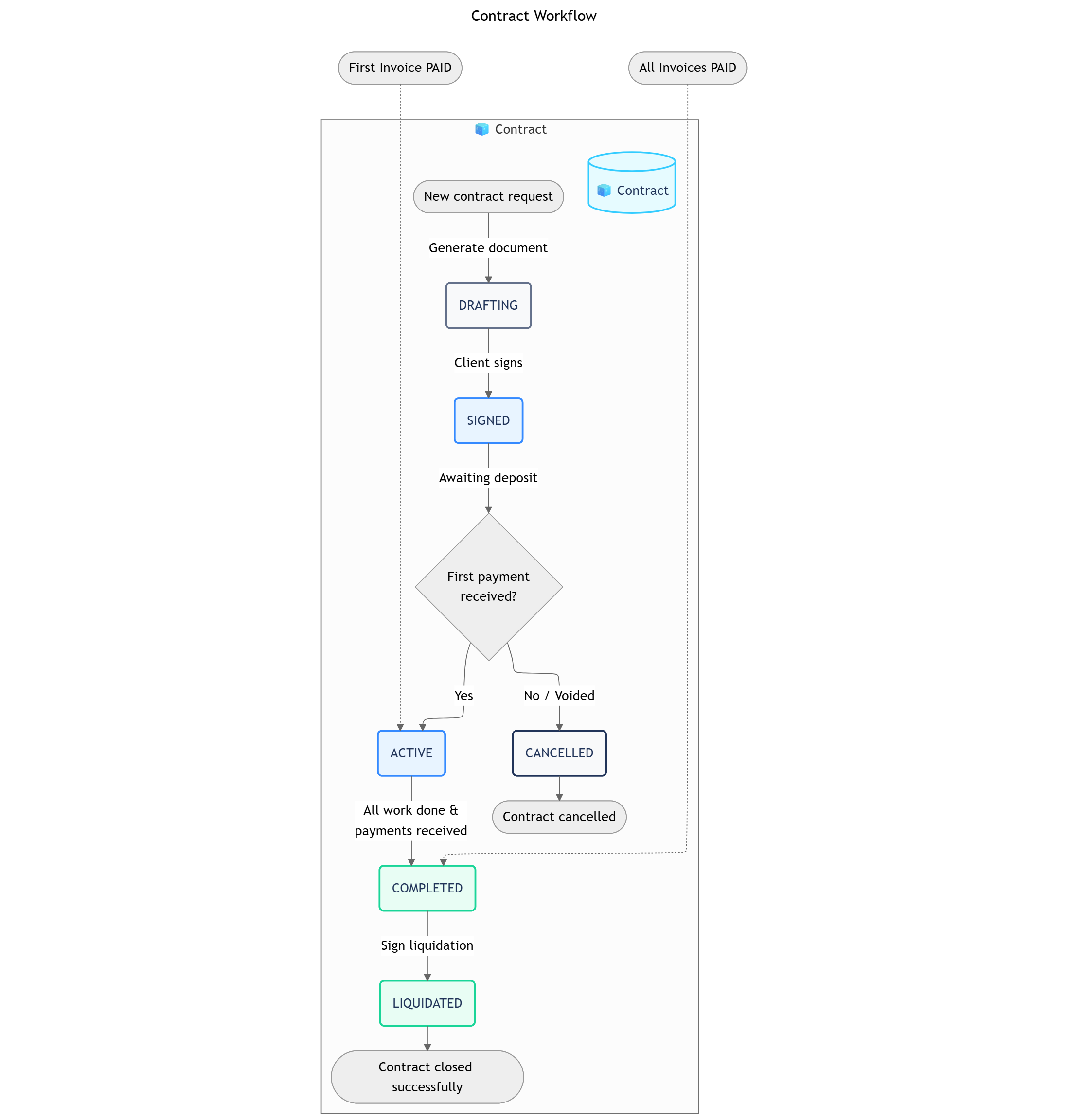
Contract Workflow
DRAFTING → SIGNED → ACTIVE → COMPLETED → LIQUIDATED
↓ ↓
CANCELLED CANCELLED
| Status | Business Logic | Advanced Settings |
|---|
| 1. DRAFTING | The contract’s terms are being finalized by the sales and accounting teams. The document is generated during this stage. | Automation: A button click triggers the Generate Google Docs Contract and Create Invoice Installments rules. |
| 2. SIGNED | The client has signed the contract, making it a legally binding agreement. | Transition Permissions: Accounting Team. Action: The finance team is now authorized to issue the first invoice to the client for the deposit. |
| 3. ACTIVE | The first payment has been received, the project is underway, and subsequent payments are being tracked against this contract. | Condition: Cannot move to this status until the first 🧊︎ Invoice is PAID. This status change triggers the Project Kick-off automation. |
| 4. COMPLETED | All project work is finished, and all payment installments have been received. | Condition: All child 🧊︎ Invoice sub-objects must be in PAID status. |
| 5. LIQUIDATED | The contract has been financially closed out, and a final liquidation document has been signed by both parties. | Data Input: A field to upload the signed liquidation document. |
| 6. CANCELLED | The contract has been voided before the project commenced. | Transition Permissions: Sales Manager, Accounting. Data Input: A required field for the “Reason for Cancellation”. |
| Group | Field Name (Type) |
|---|
| Contract Information | Contract Code (Text), Client (Object Reference), Related Project (Object Reference), Signing Date (Date), Effective Date (Date) |
| Financials | Total Value (Currency), Pre-tax Value (Formula), VAT Amount (Formula), Amount Paid (Rollup), Remaining Balance (Formula) |
| Documents | Contract File (Attachment), Liquidation Record (Attachment) |
2. 🧊︎ Invoice (Sub-Object)
- Process Description: Tracks an individual payment milestone as defined in the contract’s payment schedule.
- Parent Object:
🧊 Contract
- Example: “IN-852: 1st Payment - 25% Deposit”. “2nd Payment - 40% after Concept Approval”
Workflow
Status Details
Data Fields

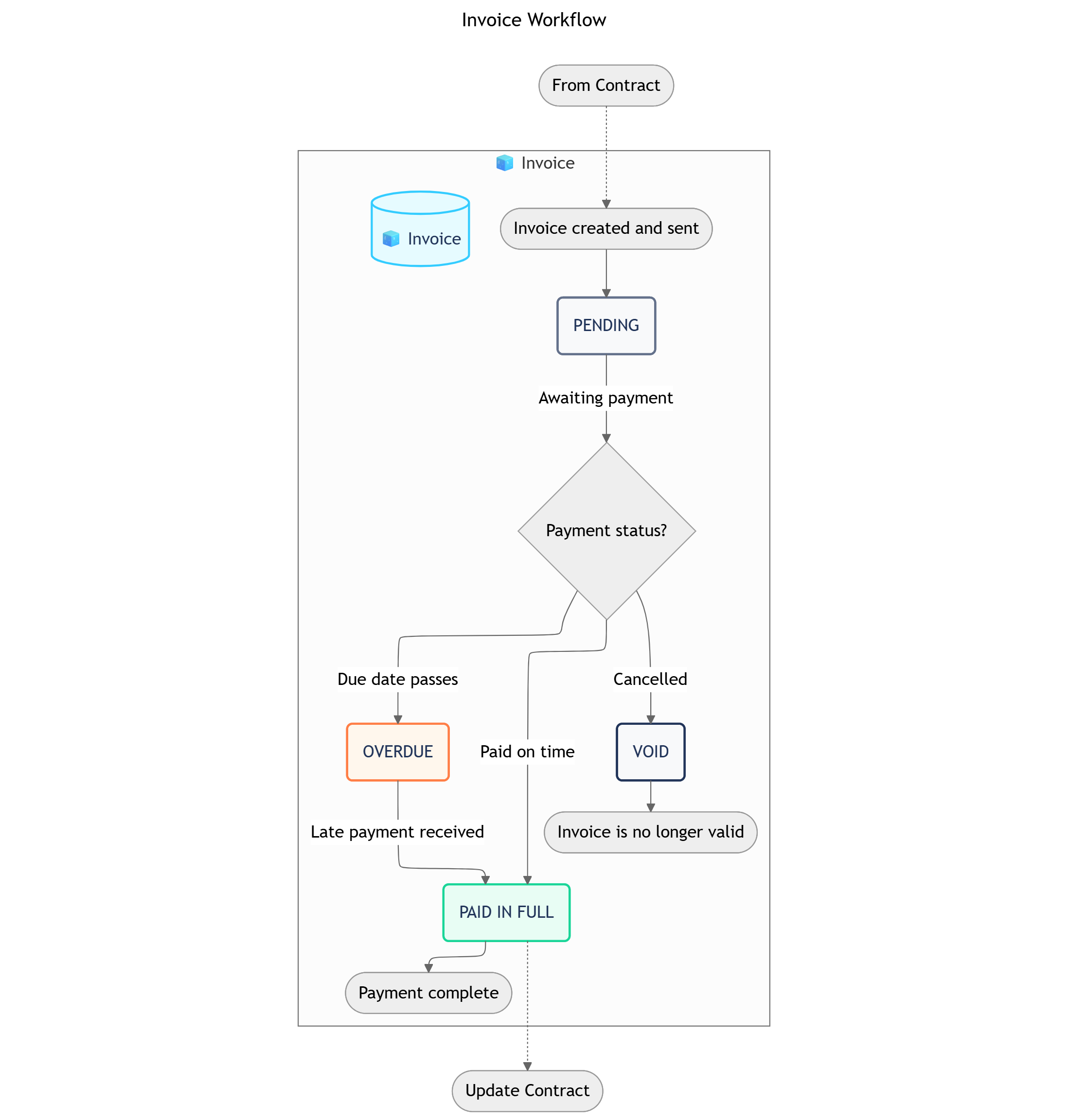
PENDING → PAID IN FULL
↓ ↑
OVERDUE ───┘
↓
VOID
| Status | Business Logic | Advanced Settings |
|---|
| 1. PENDING | The invoice has been created and sent to the client but is not yet due or paid. This is the initial status shown in the video. | Automation: A time-based rule will automatically change the status to OVERDUE if the Due Date passes and payment has not been received. |
| 2. OVERDUE | The due date has passed, and payment has not been received. | Automation: Triggers a notification to be sent to the client and the internal accounting team. |
| 3. PAID IN FULL | The client has completed the payment for this installment. This is the final success status shown in the video. | Automation: Triggers the Process Payment and Kick Off Project rule (if it’s the first invoice) and updates the Amount Paid on the parent 🧊 Contract. |
| 4. VOID | The invoice has been cancelled and is no longer valid for payment. | This is a terminal status. The amount of this invoice will not be counted towards the total of the parent 🧊 Contract. |
| Group | Field Name (Type) |
|---|
| Installment Details | Installment Name (Text), Due Date (Date), Amount (Currency), Payment Method (Dropdown) |
Pro Tip: Expanding Your Financial BlueprintThe current blueprint focuses on the primary client contract and invoicing process. To build a more comprehensive financial management system, you can introduce additional 🧊 Objects for greater control. For example, you could add:
🧊︎ Change Order sub-objects to formally document and approve any modifications to the project’s scope, timeline, or budget after the initial contract is signed.
🧊 Purchase Order objects to manage and track procurement from external suppliers, linking specific costs directly back to a project.
🧊 Vendor objects to maintain a central database of your suppliers, their contact details, and performance history.
This allows you to scale from simple project billing to full-fledged financial and procurement management as your business grows.
OBJECT RELATIONSHIPS
| Relationship | Type | Description |
|---|
🧊 Contract → 🧊︎ Payment Installment | Parent-Child | Each contract is broken down into a schedule of payment installments. |
🧊︎ Payment Installment → 🧊︎︎ VAT Invoice | Parent-Child | A VAT invoice can be issued for each payment installment. |
🧊 Contract → CRM.Customer | Reference | The contract is linked to the customer record that originated in the CRM. |
🧊 Contract → Project | Reference | The contract is linked to the project it governs in the Project Management function. |
AUTOMATIONS
These rules run entirely within the Contract & Invoice Space to manage financial records and processes.| Sequence | ID | Rule Name | Trigger | Action | Description |
|---|
| 3 | IC-03 | Create Invoice Installments | Button Click: “Create Contract (Docs)“ | Create: 🧊︎ Invoice | Triggered by the same action that generates the contract doc, this rule automatically creates multiple 🧊︎ Invoice sub-objects based on the payment structure. e.g., Creating three separate invoices for Sarah’s 25%, 40%, and 35% payment milestones. |
| 5 | IC-04 | Update Financials Upon Payment | Webhook: Payment Received (from CS-05) | Update: 🧊 Contract & 🧊︎ Invoice | When a payment is confirmed, this rule updates the 🧊︎ Invoice status to PAID and recalculates the Outstanding balance on the parent 🧊 Contract Object. |
These rules manage the flow of work between the finance function and other departments.| Sequence | ID | Direction | Rule Name | Trigger | Action |
|---|
| 1 | CF-03 | Incoming | Create Contract from Sales Handoff | Status Change: Sales & CRM/🧊 Customer to “CONTRACT PREP” | A new, linked 🧊 Contract Object is automatically created in the Contract & Invoice ⏹️ Space for the finance team when Sales confirms the deal is ready. |
| 6 | CF-06 | Outgoing | Trigger Project Kick-off & Notify Sales | Status Change: 🧊︎ Invoice to “PAID” (from CS-05) | The first successful payment triggers two key actions: - Creates a new Project Management/🧊 Project Object. - Sends a “Payment Received!” notification to the Sales & CRM ⏹️ Space chat. |
These rules connect the Contract & Invoice function with external financial and document platforms.| Sequence | ID | Rule Name | Trigger | Action | Description |
|---|
| 2 | CS-04 | Generate Google Docs Contract | Button Click: “Create Contract (Docs)“ | API Call: Google Docs | An Accountant clicks a button to send an API request, automatically populating a Google Docs contract template with smart values from the 🧊 Contract Object. |
| 4 | CS-05 | Receive Payment Confirmation | Webhook: From external payment gateway | Update: 🧊︎ Invoice | A webhook from the payment gateway notifies the system that a payment has been made, finding the specific 🧊︎ Invoice and triggering internal and cross-functional updates. e.g., Confirming Sarah’s $11,500 deposit payment. |
WORKVIEWS & DASHBOARDS
Workviews
Dashboards
Filters
| Workview | Description |
|---|
| 1. Contract List | A detailed list view of all contracts, filterable by status (e.g., PENDING APPROVAL, IN PROGRESS). |
| 2. Payment Timeline | A timeline or calendar view showing all upcoming and overdue payment installment due dates across all contracts. |
| Widget | Description |
|---|
| 1. Cash Flow Forecast | A chart projecting incoming revenue based on the due dates and amounts of all NOT DUE payment installments. |
| 2. Accounts Receivable | A counter showing the total value of all contracts currently in an OVERDUE status. |
| Filter | Criteria |
|---|
| 1. Contracts Pending Approval | Status is PENDING APPROVAL. |
| 2. Overdue Payments | Status is OVERDUE. |
ROLES, PERMISSIONS & NOTIFICATIONS
Roles
Permissions
Notifications
| Role | Description |
|---|
| Accountant | Manages payments, issues VAT invoices, and tracks financial status. Has full access within this function. |
| Sales Manager | Approves contract drafts before they are sent to the client. Can view all contracts. |
| Sales Rep | Drafts contracts for their clients. Can only view and edit contracts they are assigned to. |
This 📋 Function uses a Custom Permission Scheme.
View 🧊 Contract: Accountant and Sales Manager can view all. Sales Rep can only view assigned.
Edit 🧊 Contract: Accountant can edit all. Sales Rep can only edit assigned contracts in DRAFT status.
Create 🧊︎ Payment Installment: System automation only.
Manage 🧊︎︎ VAT Invoice: Accountant role only.
This 📋 Function uses Scheme 2 - Notify Related People.
- All notifications are sent only to the users directly assigned or involved in an object (e.g., the assigned Sales Rep on a contract, the Accountant for payments).
What’s Next?