> ## Documentation Index
> Fetch the complete documentation index at: https://docs.luklak.com/llms.txt
> Use this file to discover all available pages before exploring further.
# Project Management Function
**Purpose:** This document defines the **internal** operational logic of the Project Management `📋 Function`. It governs the entire project execution process, from initial setup after a contract is signed to final handover and warranty.
## Why This Matters
This `📋 Function` provides a unified, transparent, and structured environment for managing complex interior design and construction projects. It replaces scattered information across different tools with a single source of truth for project timelines, budgets, tasks, and communications. Strategically, this enables real-time project health monitoring, precise budget control, and improved client satisfaction through predictable delivery. For project managers and teams, it clarifies responsibilities, automates progress tracking, and ensures a consistent workflow for every project.
## The Big Picture
Architecturally, this `📋 Function` is the operational core of the business, activated once a deal is closed in the CRM `📋 Function`. It is built on a sophisticated data model involving five interconnected `🧊 Objects`. The structure is hierarchical, with the `🧊 Project` as the central container. `🧊 Construction Categories` and `🧊︎︎ Tasks` form a work breakdown structure, while `🧊 Materials` and `🧊 Construction Logs` are linked in to manage procurement and daily progress respectively. This interconnected system provides a comprehensive, 360-degree view of all project activities.
***
## OBJECT TYPES & WORKFLOWS
### 1. 🧊 Project (Standard Object)
* **Process Description**: The main container for all project-related activities, information, and financials, from the design phase through to the warranty period.
* **Example**: The project for the main client is named "Project - Sarah & Michael Westbrook". Another example from the list is "Project - Boutique Hotel Riviera".
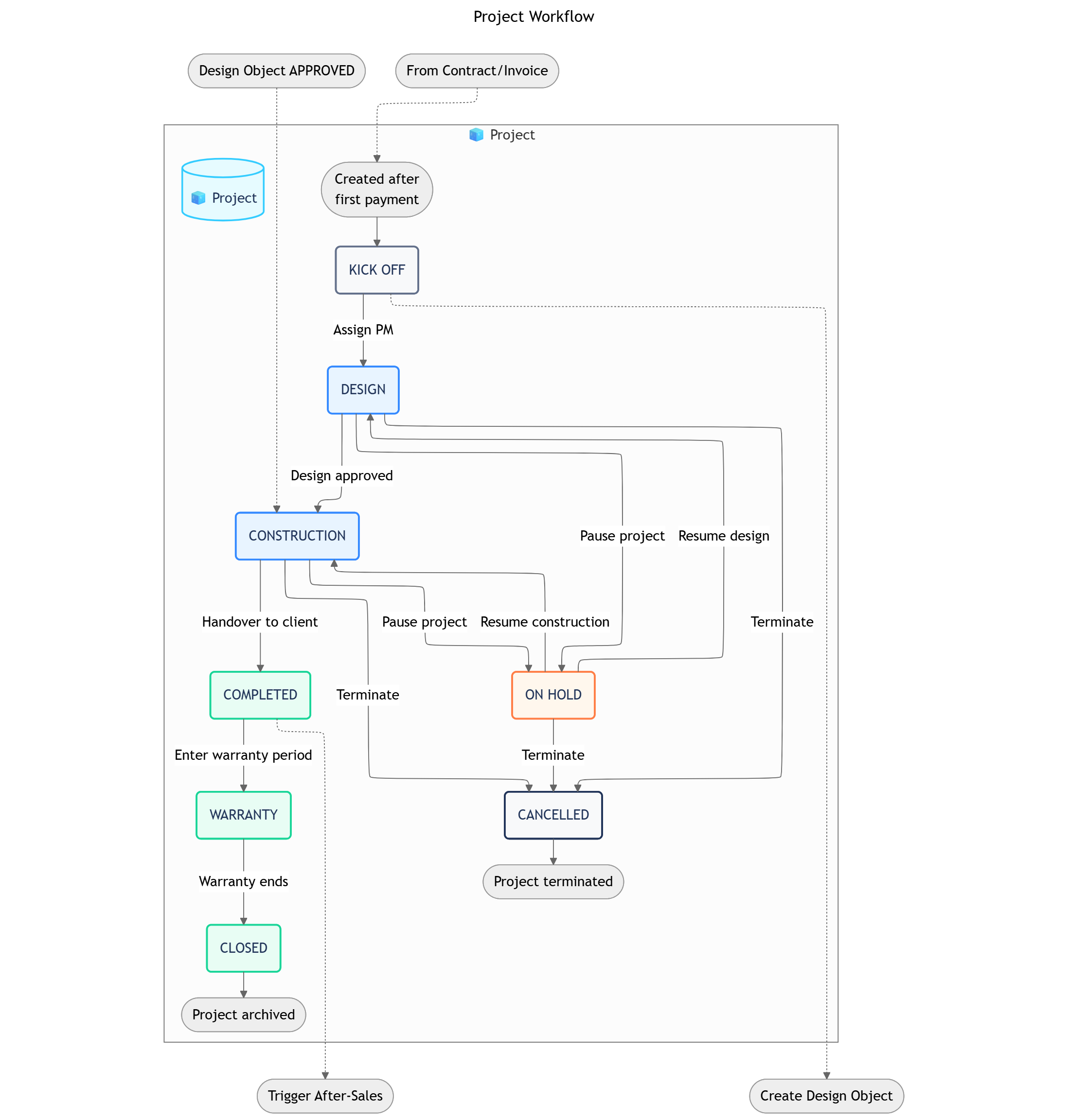
**Project Workflow**
 ```
KICK OFF → DESIGN → CONSTRUCTION → COMPLETED → WARRANTY → CLOSED
└───┬───┘
↓
ON HOLD / CANCELLED
```
| Status | Business Logic | Advanced Settings |
| :------------------ | :---------------------------------------------------------------------------------------------------------------- | :------------------------------------------------------------------------------------------------------------------ |
| **1. KICK OFF** | The project has been officially created and assigned to a Project Manager following the customer's first payment. | **Automation**: Triggers the creation of a linked `Design & Build/🧊 Design` Object for the design team. |
| **2. DESIGN** | The interior design and technical drawing phase is underway. | **Transition Permissions**: Project Manager, Lead Architect. |
| **3. CONSTRUCTION** | On-site construction and installation are in progress. This corresponds to the `UNDER CONS` status in the video. | **Condition**: Requires the main `Design` Object to be in an `APPROVED` state before starting. |
| **4. ON HOLD** | The project has been temporarily paused for any reason (e.g., awaiting client feedback, supply chain issues). | **Condition**: Can be moved back to `DESIGN` or `CONSTRUCTION` to resume work. |
| **5. COMPLETED** | All construction and installation work is finished, and the project has been handed over to the client. | **Automation**: Triggers the `After-Sales Workflows` (updates `Voucher` in CRM, creates `After-Sales Care` Object). |
| **6. WARRANTY** | The project is in the post-handover warranty period. | **Data Input**: Warranty expiration date is set. |
| **7. CLOSED** | The warranty period has ended, and the project is officially closed and archived. | **This is a terminal success status.** |
| **8. CANCELLED** | The project was terminated prematurely before completion. | **This is a terminal failure status.** |
| Group | Field Name (Type) |
| :---------------------- | :--------------------------------------------------------------------------------------------------- |
| **Project Information** | Project Code (Text), Project Name (Text), Client (Object Reference), Address (Text) |
| **Financials** | Contract Value (Currency), Total Cost (Rollup), Profit Margin (Formula) |
| **Timelines** | Planned Start Date (Date), Planned End Date (Date), Actual Start Date (Date), Actual End Date (Date) |
***
**Pro Tip: Expanding Your Project Blueprint**
The current Project Management blueprint is streamlined for clarity. As your operational complexity grows, you can easily expand it by adding more specialized `🧊 Objects` to manage finer details. For example, you could add:
* `🧊︎ Construction Category` and `🧊︎︎ Task` sub-objects to create a detailed work breakdown structure (WBS) for each project.
* `🧊 Material` objects to track the procurement lifecycle for all necessary equipment and supplies.
* `🧊 Construction Log` objects for daily on-site progress and issue tracking.
This modular approach allows you to build a system that is as simple or as detailed as your business requires.
### 2. 🧊︎ Construction Category (Sub-Object)
* **Process Description**: Manages a major work package within a `🧊 Project`, such as electrical, plumbing, or furniture installation. It groups related tasks together.
* **Parent Object**: `🧊 Project`
* **Example**: "Electrical Work" for Project P-101. "Furniture & Decor" for Project P-101.
`PLANNING` → `IN PROGRESS` → `ACCEPTANCE` → `COMPLETED`
| Status | Business Logic | Advanced Settings |
| :------------- | :------------------------------------------------------------------- | :------------------------------------------------------------------ |
| 1. PLANNING | Tasks and resources for this category are being planned. | - |
| 2. IN PROGRESS | Work on the tasks within this category has started. | **Automation**: Automatically updates the `Actual Start Date`. |
| 3. ACCEPTANCE | The work is complete and awaiting quality inspection and acceptance. | **Automation**: Creates an `Acceptance Record`. |
| 4. COMPLETED | The category has been inspected and officially marked as complete. | **Condition**: The related `Acceptance Record` must be `COMPLETED`. |
| Group | Field Name (Type) |
| :------------------- | :---------------------------------------------------------------------- |
| **Category Details** | Category Name (Text), Person in Charge (User), Budget (Currency) |
| **Scheduling** | Planned Start Date (Date), Planned End Date (Date), Progress % (Rollup) |
***
### 3. 🧊︎︎ Task (Sub-Object)
* **Process Description**: Represents an individual, actionable work item that needs to be completed. It is the smallest unit of work tracking.
* **Parent Object**: `🧊︎ Construction Category`
* **Example**: "Install living room ceiling lights". "Assemble kitchen cabinets".
`TO DO` → `DOING` → `DONE`
| Status | Business Logic |
| :------- | :--------------------------------------------- |
| 1. TO DO | The task has been created but not yet started. |
| 2. DOING | The task is currently being worked on. |
| 3. DONE | The task has been completed. |
| Group | Field Name (Type) |
| :--------------- | :---------------------------------------------------------------------- |
| **Task Details** | Task Name (Text), Assignee (User), Due Date (Date), Priority (Dropdown) |
***
### 4. 🧊 Material (Standard Object)
* **Process Description**: Manages the procurement lifecycle of a specific material or piece of equipment required for a project.
* **Example**: "Request for 20L of White Interior Paint". "Order for Nordic-style Sofa".
`REQUESTED` → `APPROVED` → `PURCHASED` → `DELIVERED` → `USED` / `CANCELLED`
| Status | Business Logic | Advanced Settings |
| :----------- | :-------------------------------------------------------- | :----------------------------------------------------------------- |
| 1. REQUESTED | A request for a material has been submitted. | - |
| 2. APPROVED | The request has been approved by the project manager. | **Automation**: Sends a notification to the purchasing department. |
| 3. PURCHASED | The material has been ordered and paid for. | **Input Screen**: Upload invoice and related documents. |
| 4. DELIVERED | The material has been delivered to the construction site. | - |
| 5. USED | The material has been consumed in the project. | - |
| 6. CANCELLED | The material request has been cancelled. | - |
| Group | Field Name (Type) |
| :----------------------- | :------------------------------------------------------------------------------------------------------------------ |
| **Material Information** | Material Name (Text), Quantity (Number), Unit (Text), Unit Price (Currency), Total Price (Formula), Supplier (Text) |
***
### 5. 🧊 Construction Log (Standard Object)
* **Process Description**: A daily log entry to record progress, issues, and activities on the construction site.
* **Example**: "Log for 2025-08-20: Completed wall painting for master bedroom. Heavy rain caused minor delay."
`DRAFT` → `SUBMITTED`
| Status | Business Logic |
| :----------- | :------------------------------------------------------------------------ |
| 1. DRAFT | The log entry is being written by the site supervisor. |
| 2. SUBMITTED | The log has been finalized and submitted for the official project record. |
| Group | Field Name (Type) |
| :-------------- | :----------------------------------------------------------------------------------------------------------------------------------- |
| **Log Details** | Log Date (Date), Author (User), Weather (Dropdown), Progress Update (Paragraph), Issues Encountered (Paragraph), Photos (Attachment) |
***
## OBJECT RELATIONSHIPS
| Relationship | Type | Description |
| :----------------------------------------- | :----------- | :---------------------------------------------------------- |
| `🧊 Project` → `🧊︎ Construction Category` | Parent-Child | A project is broken down into major work categories. |
| `🧊︎ Construction Category` → `🧊︎︎ Task` | Parent-Child | Each category is further broken down into specific tasks. |
| `🧊 Material` → `🧊 Project` | Reference | Materials are requested and tracked for a specific project. |
| `🧊 Construction Log` → `🧊 Project` | Reference | Daily logs are recorded against a specific project. |
***
## AUTOMATIONS
These rules run entirely within the `Project Management` Space to provide project visibility and automate calculations.
| Sequence | ID | Rule Name | Trigger | Action | Description |
| :------- | :-------- | :------------------------ | :------------------------------ | :----------------------- | :----------------------------------------------------------------------------------------------------------------------------------------------------------------------- |
| **4** | **IP-01** | Update Project Health | **Time-based**: Daily check | **Update**: `🧊 Project` | A daily automation checks key metrics (budget variance, schedule delays) to update a `Project Health` field (e.g., On Track, At Risk), providing at-a-glance status. |
| **5** | **IP-02** | Calculate Schedule Delays | **Update**: `Launch Date` field | **Update**: `🧊 Project` | When the `Launch Date` is changed, a formula automatically calculates the difference against a `Planned End Date` to update the `Delays (days)` field seen in the video. |
These rules describe the critical handoffs between the `Project Management` `⏹️ Space` and other functions.
| Sequence | ID | Direction | Rule Name | Trigger | Action |
| :------- | :-------- | :--------- | :---------------------------- | :----------------------------------------------------------- | :------------------------------------------------------------------------------------------------------------------------------------------------------------- |
| **1** | **CF-06** | `Incoming` | Project Kick-off | **Status Change**: `Contract & Invoice/🧊 Invoice` to "PAID" | Creates a new `Project Management/🧊 Project` Object to officially begin the implementation phase. *This happens for Sarah's project after her first payment.* |
| **2** | **CF-07** | `Outgoing` | Assign Design Work | **Create**: `🧊 Project` | Creates a linked `Design & Build/🧊 Design` Object, pre-loading it with all historical data for the designer, Max. |
| **6** | **CF-09** | `Outgoing` | Trigger After-Sales Workflows | **Status Change**: `🧊 Project` to "COMPLETE" | Updates the `Sales & CRM/🧊 Customer` with a loyalty voucher.
```
KICK OFF → DESIGN → CONSTRUCTION → COMPLETED → WARRANTY → CLOSED
└───┬───┘
↓
ON HOLD / CANCELLED
```
| Status | Business Logic | Advanced Settings |
| :------------------ | :---------------------------------------------------------------------------------------------------------------- | :------------------------------------------------------------------------------------------------------------------ |
| **1. KICK OFF** | The project has been officially created and assigned to a Project Manager following the customer's first payment. | **Automation**: Triggers the creation of a linked `Design & Build/🧊 Design` Object for the design team. |
| **2. DESIGN** | The interior design and technical drawing phase is underway. | **Transition Permissions**: Project Manager, Lead Architect. |
| **3. CONSTRUCTION** | On-site construction and installation are in progress. This corresponds to the `UNDER CONS` status in the video. | **Condition**: Requires the main `Design` Object to be in an `APPROVED` state before starting. |
| **4. ON HOLD** | The project has been temporarily paused for any reason (e.g., awaiting client feedback, supply chain issues). | **Condition**: Can be moved back to `DESIGN` or `CONSTRUCTION` to resume work. |
| **5. COMPLETED** | All construction and installation work is finished, and the project has been handed over to the client. | **Automation**: Triggers the `After-Sales Workflows` (updates `Voucher` in CRM, creates `After-Sales Care` Object). |
| **6. WARRANTY** | The project is in the post-handover warranty period. | **Data Input**: Warranty expiration date is set. |
| **7. CLOSED** | The warranty period has ended, and the project is officially closed and archived. | **This is a terminal success status.** |
| **8. CANCELLED** | The project was terminated prematurely before completion. | **This is a terminal failure status.** |
| Group | Field Name (Type) |
| :---------------------- | :--------------------------------------------------------------------------------------------------- |
| **Project Information** | Project Code (Text), Project Name (Text), Client (Object Reference), Address (Text) |
| **Financials** | Contract Value (Currency), Total Cost (Rollup), Profit Margin (Formula) |
| **Timelines** | Planned Start Date (Date), Planned End Date (Date), Actual Start Date (Date), Actual End Date (Date) |
***
**Pro Tip: Expanding Your Project Blueprint**
The current Project Management blueprint is streamlined for clarity. As your operational complexity grows, you can easily expand it by adding more specialized `🧊 Objects` to manage finer details. For example, you could add:
* `🧊︎ Construction Category` and `🧊︎︎ Task` sub-objects to create a detailed work breakdown structure (WBS) for each project.
* `🧊 Material` objects to track the procurement lifecycle for all necessary equipment and supplies.
* `🧊 Construction Log` objects for daily on-site progress and issue tracking.
This modular approach allows you to build a system that is as simple or as detailed as your business requires.
### 2. 🧊︎ Construction Category (Sub-Object)
* **Process Description**: Manages a major work package within a `🧊 Project`, such as electrical, plumbing, or furniture installation. It groups related tasks together.
* **Parent Object**: `🧊 Project`
* **Example**: "Electrical Work" for Project P-101. "Furniture & Decor" for Project P-101.
`PLANNING` → `IN PROGRESS` → `ACCEPTANCE` → `COMPLETED`
| Status | Business Logic | Advanced Settings |
| :------------- | :------------------------------------------------------------------- | :------------------------------------------------------------------ |
| 1. PLANNING | Tasks and resources for this category are being planned. | - |
| 2. IN PROGRESS | Work on the tasks within this category has started. | **Automation**: Automatically updates the `Actual Start Date`. |
| 3. ACCEPTANCE | The work is complete and awaiting quality inspection and acceptance. | **Automation**: Creates an `Acceptance Record`. |
| 4. COMPLETED | The category has been inspected and officially marked as complete. | **Condition**: The related `Acceptance Record` must be `COMPLETED`. |
| Group | Field Name (Type) |
| :------------------- | :---------------------------------------------------------------------- |
| **Category Details** | Category Name (Text), Person in Charge (User), Budget (Currency) |
| **Scheduling** | Planned Start Date (Date), Planned End Date (Date), Progress % (Rollup) |
***
### 3. 🧊︎︎ Task (Sub-Object)
* **Process Description**: Represents an individual, actionable work item that needs to be completed. It is the smallest unit of work tracking.
* **Parent Object**: `🧊︎ Construction Category`
* **Example**: "Install living room ceiling lights". "Assemble kitchen cabinets".
`TO DO` → `DOING` → `DONE`
| Status | Business Logic |
| :------- | :--------------------------------------------- |
| 1. TO DO | The task has been created but not yet started. |
| 2. DOING | The task is currently being worked on. |
| 3. DONE | The task has been completed. |
| Group | Field Name (Type) |
| :--------------- | :---------------------------------------------------------------------- |
| **Task Details** | Task Name (Text), Assignee (User), Due Date (Date), Priority (Dropdown) |
***
### 4. 🧊 Material (Standard Object)
* **Process Description**: Manages the procurement lifecycle of a specific material or piece of equipment required for a project.
* **Example**: "Request for 20L of White Interior Paint". "Order for Nordic-style Sofa".
`REQUESTED` → `APPROVED` → `PURCHASED` → `DELIVERED` → `USED` / `CANCELLED`
| Status | Business Logic | Advanced Settings |
| :----------- | :-------------------------------------------------------- | :----------------------------------------------------------------- |
| 1. REQUESTED | A request for a material has been submitted. | - |
| 2. APPROVED | The request has been approved by the project manager. | **Automation**: Sends a notification to the purchasing department. |
| 3. PURCHASED | The material has been ordered and paid for. | **Input Screen**: Upload invoice and related documents. |
| 4. DELIVERED | The material has been delivered to the construction site. | - |
| 5. USED | The material has been consumed in the project. | - |
| 6. CANCELLED | The material request has been cancelled. | - |
| Group | Field Name (Type) |
| :----------------------- | :------------------------------------------------------------------------------------------------------------------ |
| **Material Information** | Material Name (Text), Quantity (Number), Unit (Text), Unit Price (Currency), Total Price (Formula), Supplier (Text) |
***
### 5. 🧊 Construction Log (Standard Object)
* **Process Description**: A daily log entry to record progress, issues, and activities on the construction site.
* **Example**: "Log for 2025-08-20: Completed wall painting for master bedroom. Heavy rain caused minor delay."
`DRAFT` → `SUBMITTED`
| Status | Business Logic |
| :----------- | :------------------------------------------------------------------------ |
| 1. DRAFT | The log entry is being written by the site supervisor. |
| 2. SUBMITTED | The log has been finalized and submitted for the official project record. |
| Group | Field Name (Type) |
| :-------------- | :----------------------------------------------------------------------------------------------------------------------------------- |
| **Log Details** | Log Date (Date), Author (User), Weather (Dropdown), Progress Update (Paragraph), Issues Encountered (Paragraph), Photos (Attachment) |
***
## OBJECT RELATIONSHIPS
| Relationship | Type | Description |
| :----------------------------------------- | :----------- | :---------------------------------------------------------- |
| `🧊 Project` → `🧊︎ Construction Category` | Parent-Child | A project is broken down into major work categories. |
| `🧊︎ Construction Category` → `🧊︎︎ Task` | Parent-Child | Each category is further broken down into specific tasks. |
| `🧊 Material` → `🧊 Project` | Reference | Materials are requested and tracked for a specific project. |
| `🧊 Construction Log` → `🧊 Project` | Reference | Daily logs are recorded against a specific project. |
***
## AUTOMATIONS
These rules run entirely within the `Project Management` Space to provide project visibility and automate calculations.
| Sequence | ID | Rule Name | Trigger | Action | Description |
| :------- | :-------- | :------------------------ | :------------------------------ | :----------------------- | :----------------------------------------------------------------------------------------------------------------------------------------------------------------------- |
| **4** | **IP-01** | Update Project Health | **Time-based**: Daily check | **Update**: `🧊 Project` | A daily automation checks key metrics (budget variance, schedule delays) to update a `Project Health` field (e.g., On Track, At Risk), providing at-a-glance status. |
| **5** | **IP-02** | Calculate Schedule Delays | **Update**: `Launch Date` field | **Update**: `🧊 Project` | When the `Launch Date` is changed, a formula automatically calculates the difference against a `Planned End Date` to update the `Delays (days)` field seen in the video. |
These rules describe the critical handoffs between the `Project Management` `⏹️ Space` and other functions.
| Sequence | ID | Direction | Rule Name | Trigger | Action |
| :------- | :-------- | :--------- | :---------------------------- | :----------------------------------------------------------- | :------------------------------------------------------------------------------------------------------------------------------------------------------------- |
| **1** | **CF-06** | `Incoming` | Project Kick-off | **Status Change**: `Contract & Invoice/🧊 Invoice` to "PAID" | Creates a new `Project Management/🧊 Project` Object to officially begin the implementation phase. *This happens for Sarah's project after her first payment.* |
| **2** | **CF-07** | `Outgoing` | Assign Design Work | **Create**: `🧊 Project` | Creates a linked `Design & Build/🧊 Design` Object, pre-loading it with all historical data for the designer, Max. |
| **6** | **CF-09** | `Outgoing` | Trigger After-Sales Workflows | **Status Change**: `🧊 Project` to "COMPLETE" | Updates the `Sales & CRM/🧊 Customer` with a loyalty voucher.
Creates a `Customer Success/🧊 After-Sales Care` Object. |
This rule connects the Project Management function with external collaboration platforms.
| Sequence | ID | Rule Name | Trigger | Action | Description |
| :------- | :-------- | :-------------------------- | :----------------------- | :--------------------------------- | :----------------------------------------------------------------------------------------------------------------------------------------------------------------------------- |
| **3** | **CS-03** | Create Shared Client Folder | **Create**: `🧊 Project` | **Http Request**: n8n/Google Drive | When a new project for a client is created, the system automatically generates a shared Google Drive folder for all project documents and links it to the `🧊 Project` Object. |
***
## WORKVIEWS & DASHBOARDS
| Workview | Description |
| :------------------------- | :-------------------------------------------------------------------------------------------------------------------------- |
| 1. **Project Gantt Chart** | A timeline view of all projects and their `🧊︎ Construction Categories`, showing dependencies and overall project schedule. |
| 2. **Task Kanban Board** | A board view showing all `🧊︎︎ Tasks` for a selected project, organized by status (`TO DO`, `DOING`, `DONE`). |
| Widget | Description |
| :----------------------------- | :----------------------------------------------------------------------------------------------------------------------- |
| 1. **Project Health Overview** | A dashboard with counters and charts showing the status of all active projects, budget variance, and schedule adherence. |
| 2. **Resource Allocation** | A view showing how many tasks are assigned to each user across all projects to manage workload. |
| Filter | Criteria |
| :-------------------------- | :---------------------------------------------------- |
| 1. **Overdue Tasks** | `Status` is not `DONE` AND `Due Date` is in the past. |
| 2. **Projects Over Budget** | `Total Cost` (Rollup) > `Contract Value`. |
***
## ROLES, PERMISSIONS & NOTIFICATIONS
| Role | Description | Permissions & Notifications |
| :-------------------------- | :--------------------------------------------------------------- | :--------------------------------------------------------------------------------------------------------------------------------------------- |
| **1. Project Manager** | Manages the overall project and coordinates the different teams. | **Permissions**: Full control over the `🧊 Project` and its roadmap. **Notifications**: Receives all notifications regarding project progress. |
| **2. Design Lead** | Responsible for the design phase of the project. | **Permissions**: Can update the design roadmap. **Notifications**: Receives notifications for new design requests. |
| **3. Construction Manager** | Manages the on-site construction and installation phase. | **Permissions**: Can update the construction roadmap. **Notifications**: Receives a notification when the design phase is complete. |
**Approach Used**: Moderate Permissions
* **`View ⏹️ Space`**: All roles assigned to the project can view the Space.
* **`View & Update 🧊 Object`**: Only users directly assigned to a specific `🧊 Project` can view and update it.
* **Object Chat**: Anyone who can view the `🧊 Project` can participate in its chat.
#### General Notification Scheme
**Approach Used**: Notify Relevant People Only
* All actions on a `🧊 Project` will send a notification to the Project Manager and the assigned team.
* Roadmap updates send a notification to the assignee and the Project Manager.
* Milestone completions send a notification to the entire project team.
## What's Next?
* [**Contract & Invoice Function**](https://claude.ai/chat/path/to/contract-function): Understand how the initial `Contract Value` is determined and how client invoicing is managed alongside project progress.
* [**CRM (Business) Function**](https://claude.ai/chat/path/to/crm-function): See the preceding stage where the client relationship and initial project scope are defined before being handed over to this function.