> ## Documentation Index
> Fetch the complete documentation index at: https://docs.luklak.com/llms.txt
> Use this file to discover all available pages before exploring further.
# Organizing Work with Areas & Spaces
> Learn how to structure your digital office using Areas and Spaces, the foundational containers for all work and collaboration in Luklak.
## Your Digital Office Structure
As introduced in the overview, the **Organizational Structure** is the official company-wide map for all work. It provides a shared, hierarchical view so everyone knows where to find different teams and processes. This structure is built from two simple components: `📂 Areas` and `⏹️ Spaces`.
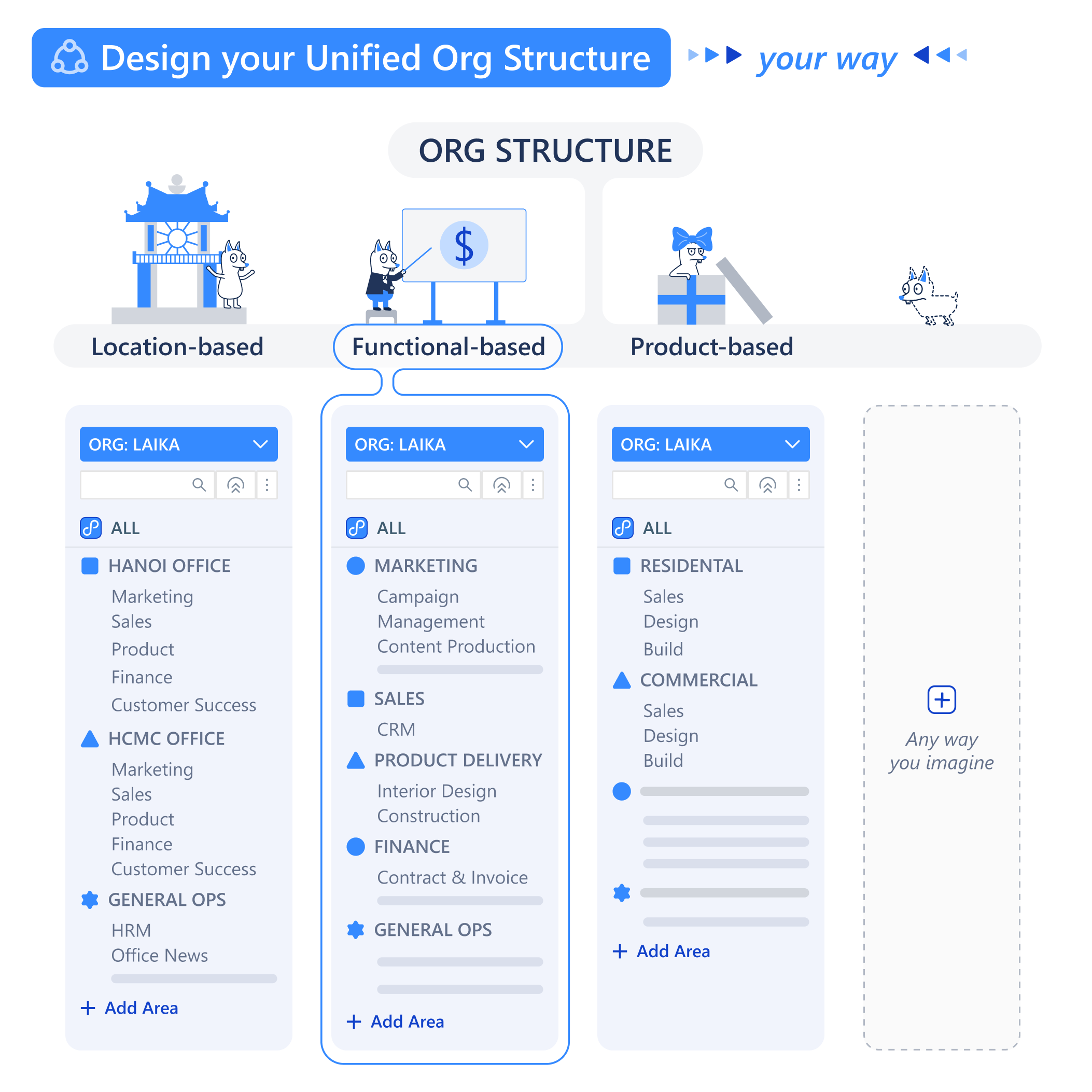 Think of it like a digital filing cabinet:
* An **`📂 Area`** is the cabinet drawer, used to group related topics (e.g., "Finance Department," "Marketing Projects").
* A **`⏹️ Space`** is a specific folder inside that drawer, dedicated to a single project or process (e.g., "Q4 Budgeting," "New Website Launch").
## `📂 Areas`: Grouping Your Workstreams
An `Area` is a high-level container used to group multiple, related `Spaces`. The primary purpose of an `Area` is to bring organizational clarity. You can create `Areas` that mirror your company's structure, such as departments, long-term initiatives, or client portfolios. As a manager, you can create new `Areas` and move `Spaces` between them to keep your digital workspace tidy and intuitive.
## `⏹️ Spaces`: The Live Work Environment
A `⏹️ Space` is the most important concept in daily operations. It is the actual, live environment where your team collaborates to get work done on `🧊 Objects`.
The most critical thing to remember is that every `Space` is created from a `📋 Function` blueprint. The `Space` inherits all the logic—the `Workflows`, `Data Fields`, `Automations`, and `Roles`—that was designed in the `Function`. The `Function` is the plan; the `Space` is the real building where work happens.
## How to Create and Manage a Space
As a manager, one of your key tasks is to create and configure `Spaces` for your team.
```guidejar theme={null}
# Tutorial: Creating and Configuring a New Space
! Important: You must have the necessary permissions to create a Space within a specific Area.
## Section 1: Create a New Space
1. **Navigate to an Area**
From the main navigation panel, go to the `📂 Area` where your new workspace should live (e.g., "Projects Department").
2. **Create from a Function**
Click the `+` button or `Create Space`. This will open a library of available `📋 Function` blueprints. Select the one that matches your need (e.g., "Standard Project Plan").

3. **Name Your Space**
Give your `Space` a specific, descriptive name that your team will easily recognize (e.g., "2025 Website Relaunch Project").
## Section 2: Configure the Space
1. **Navigate to Space Settings**
Once the `Space` is created, click on its name, then find the `Settings` or `Members` tab.
2. **Assign Users to Roles**
This is the most crucial configuration step. You will see a list of the `Roles` that were defined in the `Function` (e.g., "Project Manager," "Team Member"). Your job is to map your actual `Users` and `Groups` to these `Roles`. This act is what grants them the correct permissions within this specific `Space`.

```
## Create Flexible Collaboration Rooms with Workspaces
The `📂 Area` and `⏹️ Space` hierarchy provides a clear, official map for your whole company. But what about projects that span multiple departments?
This is where **Workspaces** provide powerful flexibility. A Workspace is a personal or team-based dashboard that lets you group shortcuts to `⏹️ Spaces`, reports, and filtered views from across the entire organization—all in one place.
For instance, you could create a "Q4 Product Launch" Workspace that pulls in:
* The "Campaign Plan" `⏹️ Space` from the `📂 Marketing Area`.
* The "Supplier Contracts" `⏹️ Space` from the `📂 Finance Area`.
* A real-time report on development progress.
This doesn't move or change the official location of those `⏹️ Spaces`. It simply creates a convenient, cross-functional view for you and your project team, giving you a focused command center for a specific initiative.
## What's Next?
You now know how to structure your team's workspace by creating `Spaces` from `Functions`. The next step is to understand the daily activities that happen *inside* these `Spaces`.
* [**Learn what happens inside a Space → Managing Objects: The Heart of Daily Work**](/en/02-platform/use-and-operate/working-with-objects)
* [**See how all your work comes together → A Guide to Your Personal Home**](/en/02-platform/use-and-operate/personal-home)
* [**Return to the Daily Operations Overview**](/en/02-platform/use-and-operate/index1)
Think of it like a digital filing cabinet:
* An **`📂 Area`** is the cabinet drawer, used to group related topics (e.g., "Finance Department," "Marketing Projects").
* A **`⏹️ Space`** is a specific folder inside that drawer, dedicated to a single project or process (e.g., "Q4 Budgeting," "New Website Launch").
## `📂 Areas`: Grouping Your Workstreams
An `Area` is a high-level container used to group multiple, related `Spaces`. The primary purpose of an `Area` is to bring organizational clarity. You can create `Areas` that mirror your company's structure, such as departments, long-term initiatives, or client portfolios. As a manager, you can create new `Areas` and move `Spaces` between them to keep your digital workspace tidy and intuitive.
## `⏹️ Spaces`: The Live Work Environment
A `⏹️ Space` is the most important concept in daily operations. It is the actual, live environment where your team collaborates to get work done on `🧊 Objects`.
The most critical thing to remember is that every `Space` is created from a `📋 Function` blueprint. The `Space` inherits all the logic—the `Workflows`, `Data Fields`, `Automations`, and `Roles`—that was designed in the `Function`. The `Function` is the plan; the `Space` is the real building where work happens.
## How to Create and Manage a Space
As a manager, one of your key tasks is to create and configure `Spaces` for your team.
```guidejar theme={null}
# Tutorial: Creating and Configuring a New Space
! Important: You must have the necessary permissions to create a Space within a specific Area.
## Section 1: Create a New Space
1. **Navigate to an Area**
From the main navigation panel, go to the `📂 Area` where your new workspace should live (e.g., "Projects Department").
2. **Create from a Function**
Click the `+` button or `Create Space`. This will open a library of available `📋 Function` blueprints. Select the one that matches your need (e.g., "Standard Project Plan").

3. **Name Your Space**
Give your `Space` a specific, descriptive name that your team will easily recognize (e.g., "2025 Website Relaunch Project").
## Section 2: Configure the Space
1. **Navigate to Space Settings**
Once the `Space` is created, click on its name, then find the `Settings` or `Members` tab.
2. **Assign Users to Roles**
This is the most crucial configuration step. You will see a list of the `Roles` that were defined in the `Function` (e.g., "Project Manager," "Team Member"). Your job is to map your actual `Users` and `Groups` to these `Roles`. This act is what grants them the correct permissions within this specific `Space`.

```
## Create Flexible Collaboration Rooms with Workspaces
The `📂 Area` and `⏹️ Space` hierarchy provides a clear, official map for your whole company. But what about projects that span multiple departments?
This is where **Workspaces** provide powerful flexibility. A Workspace is a personal or team-based dashboard that lets you group shortcuts to `⏹️ Spaces`, reports, and filtered views from across the entire organization—all in one place.
For instance, you could create a "Q4 Product Launch" Workspace that pulls in:
* The "Campaign Plan" `⏹️ Space` from the `📂 Marketing Area`.
* The "Supplier Contracts" `⏹️ Space` from the `📂 Finance Area`.
* A real-time report on development progress.
This doesn't move or change the official location of those `⏹️ Spaces`. It simply creates a convenient, cross-functional view for you and your project team, giving you a focused command center for a specific initiative.
## What's Next?
You now know how to structure your team's workspace by creating `Spaces` from `Functions`. The next step is to understand the daily activities that happen *inside* these `Spaces`.
* [**Learn what happens inside a Space → Managing Objects: The Heart of Daily Work**](/en/02-platform/use-and-operate/working-with-objects)
* [**See how all your work comes together → A Guide to Your Personal Home**](/en/02-platform/use-and-operate/personal-home)
* [**Return to the Daily Operations Overview**](/en/02-platform/use-and-operate/index1)